How to Create a Product
Add a menu product with its category, price, details, availability, and image in Menuella.
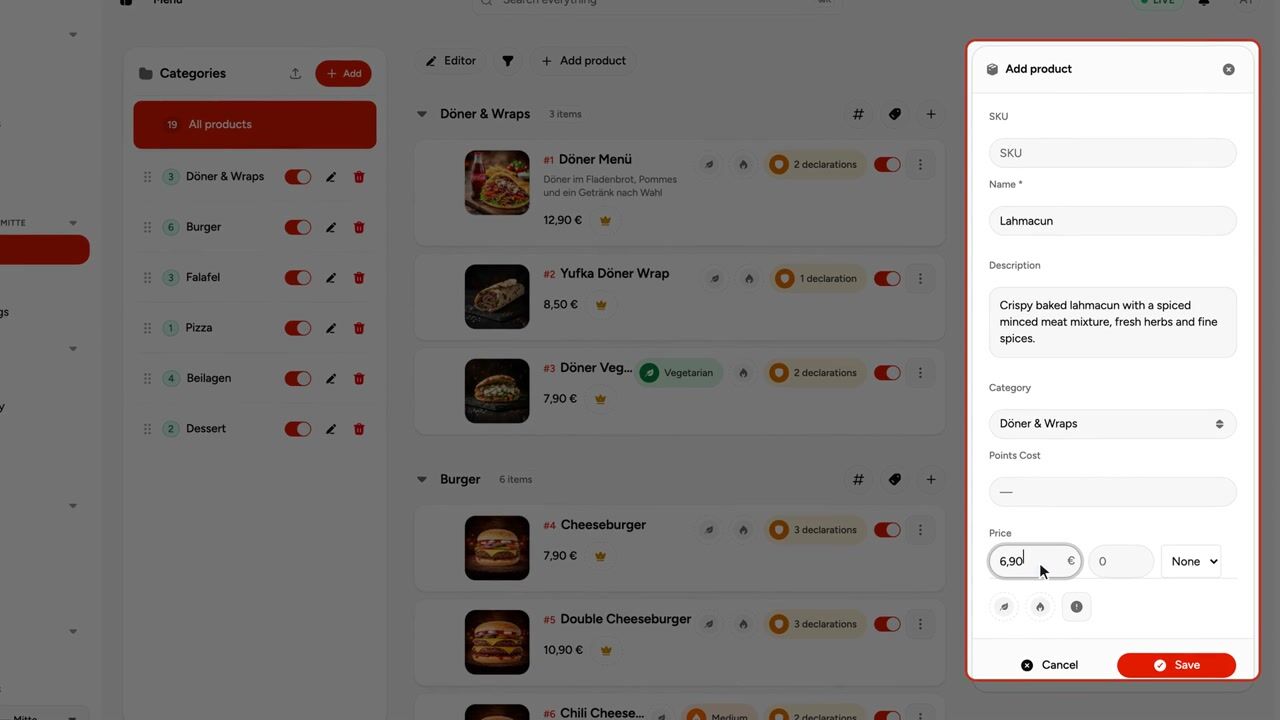
A product is an item guests can order. Create it from Menu → Products and assign it to a category before making it available.
Create a product
- Open Menu → Products.
- Select Add product or Add quick item.
- Enter the product name, price, and category.
- Add an optional description, item number, image, and allergen or dietary information.
- Set an optional Points cost if guests should be able to redeem the product with loyalty points.
- Configure whether the product is visible and available to guests.
- Assign modifiers such as sizes, extras, or sauces when needed.
- Save the product.
The product appears in its category in the Products list. Check its availability before sharing the menu with guests.
Product fields
| Field | Purpose |
|---|---|
| Title | Product name shown to guests |
| Description | Details that help guests understand the item |
| Category | Menu group where the product appears |
| Price | Base price in the store currency |
| Image | Product image selected from the Media Gallery |
| Number | Optional internal item number or SKU |
| Visible | Whether guests can see and order the product |
| Points cost | Number of loyalty points required to redeem one unit of the product |
Related guides
- Edit a Product — Change product details
- Update a Product Image — Choose or replace the image
- Set Up Product Rewards — Let guests redeem the product with loyalty points
- Allergens and Dietary Info — Add guest-facing dietary information


